Numkoi user guide
This page is the whole guide. Search it for a word such as "formula", "Undo" or "Ask for this each time".
Contents
- 0. Your first minute and your first formula
- 1. What Numkoi is for
- 2. The Calculator
- 3. Variables
- 4. Formulas
- 5. Ask for this each time
- 6. Saved results and History
- 7. Dashboard
- 8. Widgets
- 9. Shortcuts and Siri
- 10. Percent, markup and other keys
- 11. Delete, Undo and Recently deleted
- 11a. Sharing, opening files, backups and the Gallery
- 12. iPhone and iPad
- 13. Settings and Numkoi Pro
- 14. Privacy and your data
0. Your first minute and your first formula
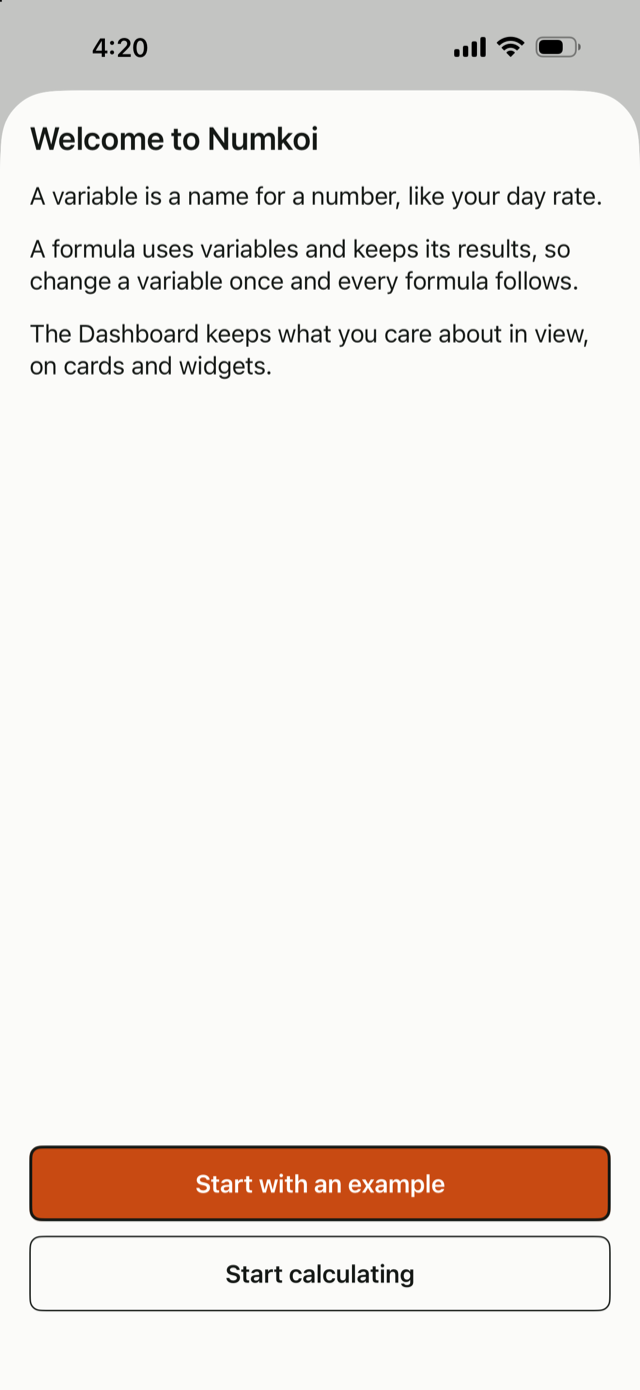
The first time you open Numkoi (and only if you have no variables or formulas yet) a short welcome says three things: a variable is a name for a number, like your day rate; a formula uses variables and keeps its results, so you change a variable once and every formula follows; and the Dashboard keeps what you care about in view. Tap Start with an example to open the Gallery, or Start calculating to go straight to the Calculator. If you opened Numkoi by tapping a file, that file's preview comes first and the welcome after it. You can swipe it away; either way it is not shown again on its own. To see it again, open Settings and tap Show the welcome again under Help. A screen with nothing on it yet says what it is for and offers one next step: Library offers a New variable or the Calculator, History offers the Calculator, the Dashboard offers Add a card, and each has the quiet "Need an idea? Browse the Gallery" link.
Your first formula in two minutes
Say you sell things online. A marketplace takes 12.5% and shipping is 6.40. What do the fees cost on an 80 sale?
- On the Calculator tab, tap + Variable. Name it Marketplace fee, type 12.5% as the value and tap Save variable.
- Tap + Variable again. Name it Shipping, type 6.40 and tap Save variable.
- Type 80, tap ×, tap the Marketplace fee chip, tap +, then tap the Shipping chip. The answer, 16.40, shows under the line as you go.
- Tap Save as formula, type Total costs and tap Save formula. It is now a formula.
- Later, open Library, tap the Variables tab, tap Marketplace fee, change it to 15% and tap Save variable. Tap Total costs in Library: it opens in the Calculator with the new answer, 18.40.
That is the whole idea. The rest of this page explains each screen.
1. What Numkoi is for
A phone calculator forgets everything when you clear it. Numkoi keeps two things:
- Variables: a name for a number you use again, such as Day rate, Fuel or Shipping.
- Formulas: a calculation you saved, such as Day rate × Days + Fuel.
Change a variable once and every formula that uses it gives the new answer. A variable's value can be typed, taken from a saved result of a formula, or pulled from a web address you set up (section 3); a run of a formula or a Shortcut (Set Variable, section 9) can set it too. Use the plain keypad for a one-off sum; save a calculation as a formula when you will do it again.
2. The Calculator
On iPhone the app has four tabs along the bottom: Calculator, Library, History and Dashboard.
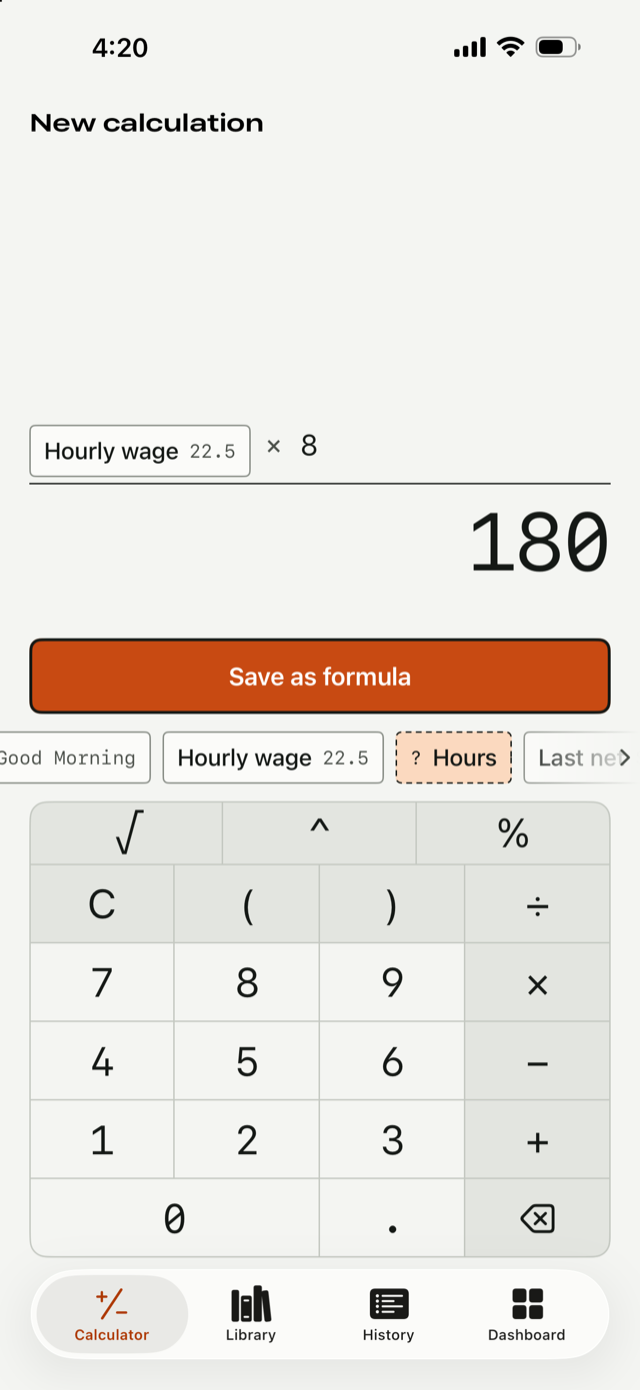
The Calculator opens on a blank calculation titled New calculation. Type with the keypad. The answer shows under the line as you type, so there is no equals key. C clears everything and ⌫ removes the last digit or the last chip.
Above the keypad is a row of chips that slides sideways (an arrow at the right says there is more). It starts with + Variable, then your variables and formulas, then your saved results (marked ≡) and the word Functions followed by sum, average, count, min and max. Tap a chip to add it to the calculation. Tap a chip that is already in the calculation to see its exact value. Touch and hold a function chip to read what it does.
A variable that holds text, such as a client name, is greyed in the row and marked "text": words cannot go into a calculation.
Touch and hold the answer to Copy answer or Copy calculation as text, for example Day rate × Days + Fuel = 760.
Rounding. Answers show 2 decimals. When digits are hidden the answer starts with ≈ and a line under it gives the exact value, such as "Exact: 490.5407 (shown to 2 decimals)". To see more or fewer decimals, open Settings and change Answers shown with. It applies to percents and rates too: with 0 decimals a 12.5% fee reads ≈13% (the exact 12.5% shows under it). A number or percent can set its own decimals under Shown as, and then ignores this setting.
When the answer is a number you want to keep, tap Save as formula, type a name and tap Save formula. It is now a formula, and the button reads ✓ Formula saved, then Run formula when it asks for numbers (a formula that asks for nothing keeps ✓ Formula saved until you change the calculation, and then reads Save result). Save, at the top right of that sheet, does the same thing.
3. Variables
A variable is a name with a value: a number or some text. Examples: Rent (1,450), Fuel (1.89), Markup (15%), G (9.81).
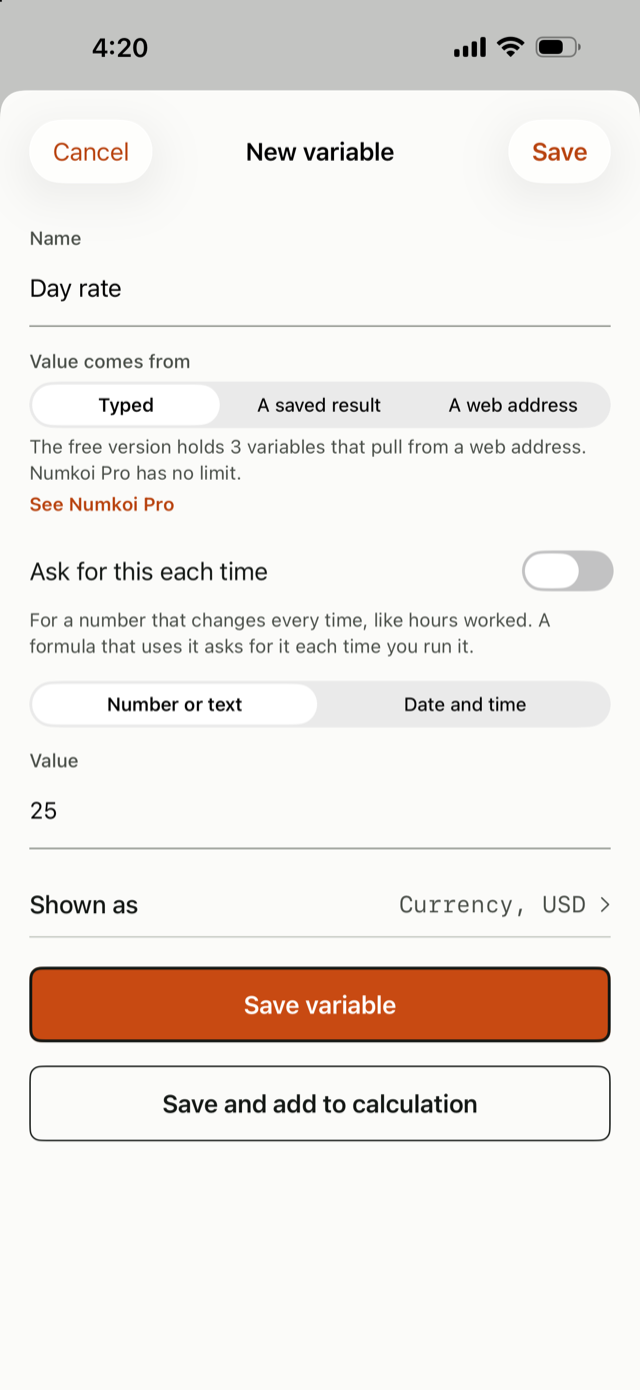
To make one, tap + Variable in the chip row, or open Library and tap + New, then New variable. Type a name and a value.
- Save variable keeps it. Tap its chip when you want it. The Save button at the top right of the sheet does the same, so you never need to look for a button behind the keyboard.
- Save and add to calculation keeps it and puts its chip into the calculation you are working on. A text variable can go in too: it joins with other text and the text functions work on it (math still needs numbers).
If Save variable is grey, a line above it says what is missing. If the value is text rather than a number, the button reads Save as text. You can type a number with commas (1,200.50), with a power of ten (6.022e23) or as a percent (18%). Once a variable holds a number, it only takes a number: typing something else over it on its page (for example 18%25% or 1,2 while you are still typing) is not saved, the old number stays, and a line says "That is not a number, so it was not saved. Type digits like 22.50 or a percent like 18%." To hold text instead, make a new variable; a variable that already holds text takes anything, including a number.
Names are kept exactly as you type them, so g stays g and kWh stays kWh. A name cannot hold + × ÷ ( ) = ^ % √ or other math symbols, and it cannot be only digits.
Shown as: how a value is written. Every variable and formula has a Shown as row (in New variable, on the variable's page and in a formula's details). It chooses how the value is written everywhere it appears: on Dashboard cards and widgets, in a chip, in the Library and in History. The value itself never changes, only how it looks. A number can be a plain Number (with 0 to 8 decimals or the Settings choice, and the thousands separator on or off), a Percent (0.18 shows as 18%), a Currency (pick the currency; yen has no decimals, dollars have two) or a Short number (1.2K, 3.4M). A text variable can be as typed, UPPERCASE, lowercase, Title Case or Sentence case. A date variable can show as a date (short, medium or long), a date and time, a time or year-month-day. A live preview shows your choice on the variable's own value before you use it. A variable typed as 18% still starts as a percent. The field where you type a value always takes plain digits (or 18% for a percent), whatever format is chosen.
To change a variable, open Library, tap the Variables tab, tap the variable, change the value and tap Save variable. The button then reads Saved until your next edit. Every formula that uses it follows the new value. This is the same for a variable that asks each time.
Pull a value from a web address
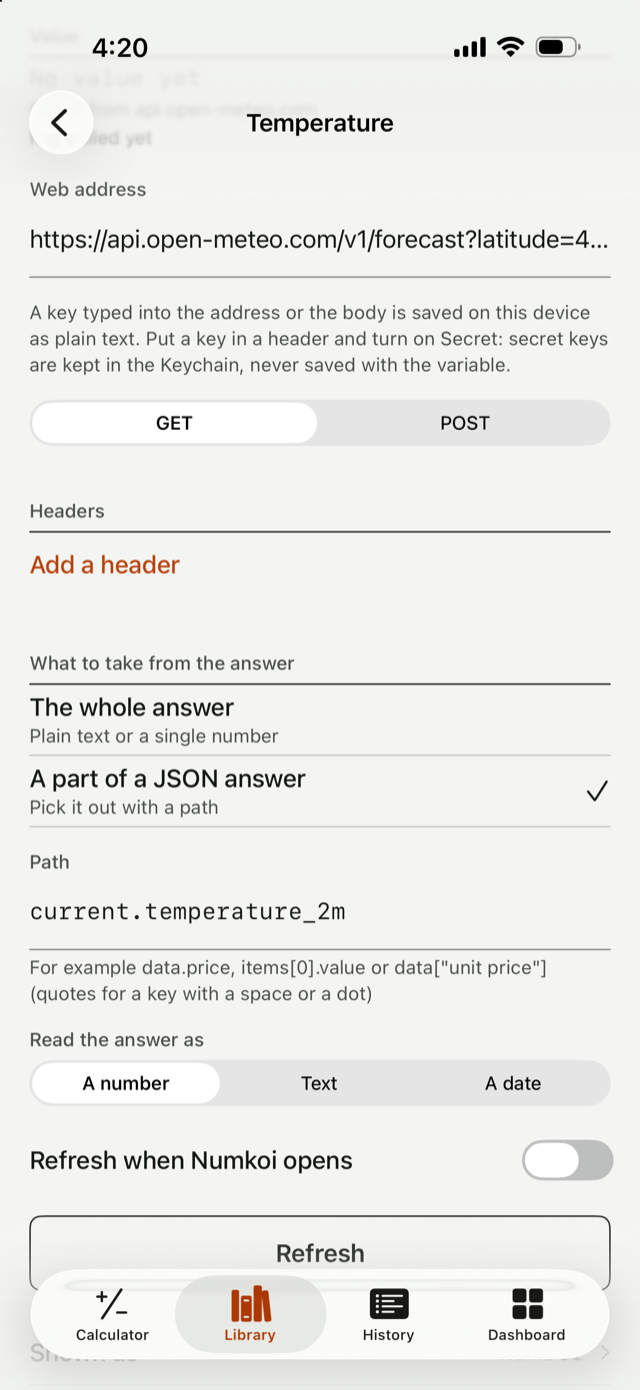
A variable can get its value from a web address instead of from you. In New variable or on a variable's page, choose Value comes from: A web address (the other choices are Typed and A saved result). A variable gets its value one way, so a variable that comes from a web address cannot also ask each time or follow a saved result; the form says so.
Fill in:
- Web address: it must start with https://. A plain http:// address is refused.
- Method: GET (ask for the answer) or POST (send something first). A POST has a Body, sent exactly as you type it.
- Headers: a name and a value each, such as Accept and application/json. Turn on Secret for a key or token: you type it once, it is kept in this device's Keychain and nowhere else (never with the variable, in History, in a widget, in a backup of your variables or on other devices), and the row then says "A key is set" with Replace and Remove. The key is never shown again. A key belongs to its header name: if you rename the header, the row asks for the key again (the old one is deleted when you save).
- What to take from the answer: The whole answer (a plain number or text, trimmed), or A part of a JSON answer with a path such as
data.priceoritems[0].value(a key written plain is letters, digits, _ and -, in any language, sorates.EURandprécio.totalwork; [0] is the first item). A key with a space, a dot, a slash or other punctuation goes in quotes inside square brackets, which you can mix with the plain forms:["Global Quote"]["05. price"],data["USD/EUR"].rate,items[0]["unit price"]. To put a quote inside a quoted key, write a backslash before it (["say \"hi\""]). A number with more than 38 digits is not rounded: the pull fails with "The number has too many digits." and keeps the old value. - Read the answer as: a number (a JSON number, or text that reads like typing, such as 1,200.50 or 18%), text (a string or a number) or a date (ISO 8601 text such as 2026-10-03 or 2026-10-03T09:00:00Z).
- Refresh when Numkoi opens (on for a new variable; you can switch it off): Numkoi pulls once each time it opens, skipping a variable it tried less than a minute ago. Nothing is pulled in the background, and nothing is pulled while Numkoi is closed.
Never put a key in the web address or in the body. Those two are saved on this device as plain text. A key belongs in a header with Secret turned on; the form reminds you under both fields.
Try it and Refresh. In a new variable the button says Try it: it asks once, shows the value it would give or the reason it cannot, and saves nothing. On a saved variable the button says Refresh: it pulls now, the same way the pull at open does, and shows the new value or the reason. The variable's page says "Pulled from api.example.com", when it last worked ("Last worked Fri, Oct 2, 3:42 PM") and, if the last try failed, why. A variable made from a value you tried with Try it says when that try worked; a variable that has not been pulled yet says "Not pulled yet", and "Has not worked yet" appears only after a try that failed, with the reason under it. A failed pull keeps the old value and writes nothing to History. A pull that changes the value works like any change: History gets "Was ..." under the variable and a row under each formula that changes, and cards and widgets follow. In Library the variable's row says "Pulls from api.example.com".
A worked example. You want a euro rate in your formulas. New variable, name it Euro rate, choose A web address, type https://api.example.com/v1/rates, choose A part of a JSON answer and type rates.EUR, keep Read the answer as a number, tap Try it. It says "It would give 0.92", so tap Save variable. A formula such as Price × Euro rate now uses the rate, and refreshes it each time Numkoi opens.
A variable holds a number, not a unit, so write the unit where you show it. For example, a variable that pulls the current temperature from a weather service gives a plain number such as 18.4, and many weather services report it in °C. Put the unit in the Dashboard card's header ("Temperature °C"), because a variable has no unit field.
When it does not work, the message says why, in these words:
- "Could not refresh. Timed out." (the whole request, from asking to the last of the answer, took more than 15 seconds)
- "Could not refresh. The answer is too large." (the answer is bigger than 1 MB; it is refused as soon as the server says so, or when more than 1 MB has arrived)
- "Could not refresh. No internet connection."
- "Could not refresh. The address could not be found." or "A secure connection could not be made."
- "Could not refresh. The server answered 503: ..." with the first 200 characters of the reply (any key in it is removed)
- "Could not refresh. The path rates.EUR was not found in the answer."
- "Could not refresh. The path ‘...’ is not written like data.price, items[0].value or data[\"unit price\"]." (the path itself is badly written, for example a quote that is never closed)
- "Could not refresh. The number has too many digits." (more than 38 significant digits, which cannot be kept exactly) or "The number is too large or too small."
- "Could not refresh. The answer 'abc' is not a number." (or not a date, or is a list, an object, true or false, or empty)
- "Could not refresh. The key for the header X-Api-Key is missing. Enter it again." (for example on a second device)
To go back to typing, choose Typed and tap Save: the variable keeps the value it has, the source is removed and its keys are deleted from the Keychain. A deleted variable keeps its keys, so Undo or Restore brings it back with them; a variable removed for good after 30 days takes its keys with it. Typing into a variable that pulls is not offered; use Typed first, or Shortcuts' Set Variable, which works on it, and the next pull replaces the value. A key with a space or an accented letter in its name cannot be reached with a path. An answer is capped at 1 MB. The app asks only the address you typed; nothing goes to the developer.
4. Formulas
A formula is a saved calculation. Build it with the keypad and chips, tap Save as formula and name it. Formulas are listed in Library on the Formulas tab and as chips in the Calculator.
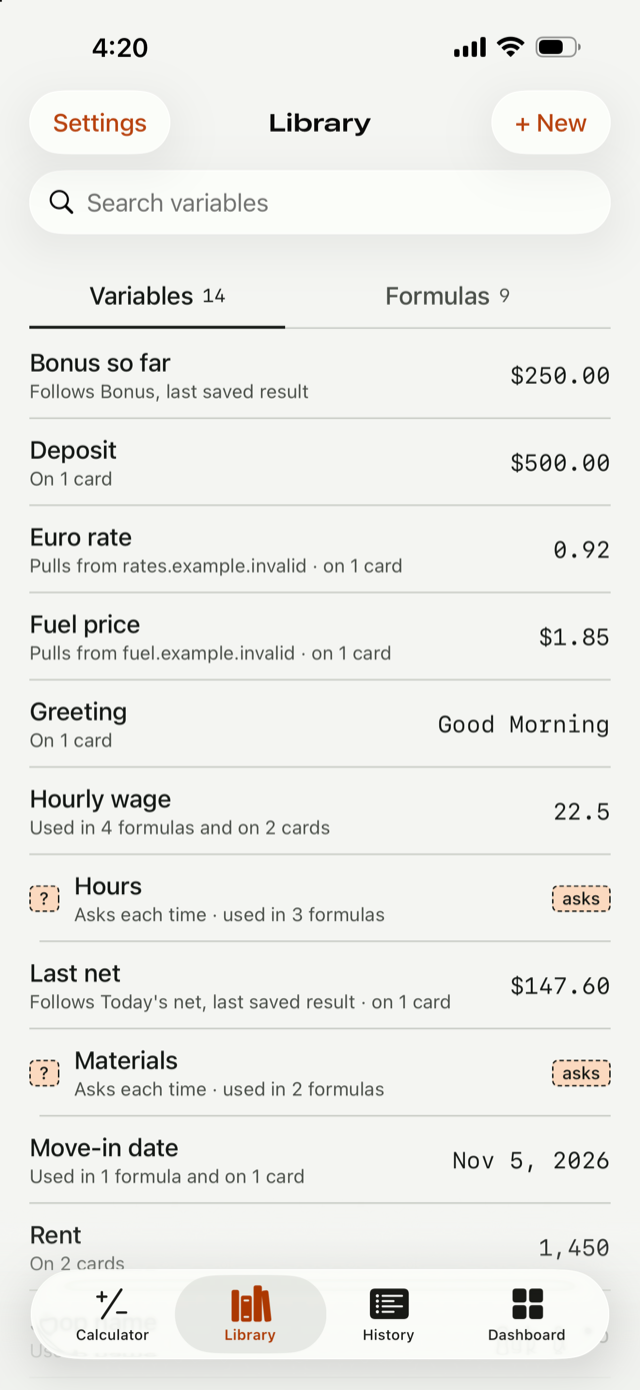
To change a formula, tap it in Library. It opens in the Calculator with its name at the top and < New calculation on the left. Edits save automatically. Tap < New calculation to go back to a blank calculation.
Details, at the top right, shows what the formula asks for, the calculation written out as text with Copy as text, and Rename and see the working. That opens Formula details: the name, the formula, a line for each step with its value, what it asks for, and where it is used. In Library you can also touch and hold a formula and choose Rename and details. Duplicate and Delete are on the swipe actions. A duplicate is named like the original with "copy" added; symbols a name cannot hold (such as + or %) are left out of the copy's name.
A formula can use other formulas, to any depth. If Test is 5 and Test times 8 is Test × 8, then Test times 8 + 1 works as a third formula. Two formulas cannot use each other: Numkoi greys out a chip that would close a loop and says why.
If you type a calculation that uses your variables, such as Test × 8, as the value of a new variable, Numkoi saves it as a formula instead.
A formula that depends on one with a problem is marked in Library, so you can see what is affected before you run it.
Under each formula Library says when you last saved a result ("Last 760 · Tue"). A new formula that asks for something says "Not run yet" until you save a result for it; any other formula with nothing saved says "No result saved yet". When another formula or a Dashboard card uses the formula, the line ends with where, for example "Last 760 · Tue · used in 1 formula and on 2 cards". Under each variable it says where it is used: "Used in 2 formulas and on 1 card", "Used in 2 formulas" or "On 1 card" (a Dashboard card that shows the variable counts, on any page), or "Not used in a formula or on a card" when nothing uses it. A variable that pulls from a web address or follows a result keeps that line first and adds where it is used ("Pulls from api.example.com · used in 2 formulas and on 1 card"). The same words head the Used in list on a variable's page and in a formula's details (the list itself names the formulas; the cards are counted, not named), and a variable's page says "Changing this changes every formula that uses it and every card that shows it." when both use it.
5. Ask for this each time
Turn on Ask for this each time for a variable whose number changes every time, such as hours worked. It is the row under Name in a new variable, and you can tap anywhere on the row. A formula that uses it asks for the number each time you run it. Ask-each-time variables show an orange ? chip. Like any variable, it has one current value: the number from the last time it was set (by a run, by editing it, or by a Shortcut). The Value field becomes Test value, which is that current value: it is used to see an answer while you build, and every formula, Dashboard card and widget that uses the variable shows it until the next run changes it.
While you build, the Calculator says "Type a test number" until you give the ? chip a number: tap the chip and choose Change test value. A test value is never saved.
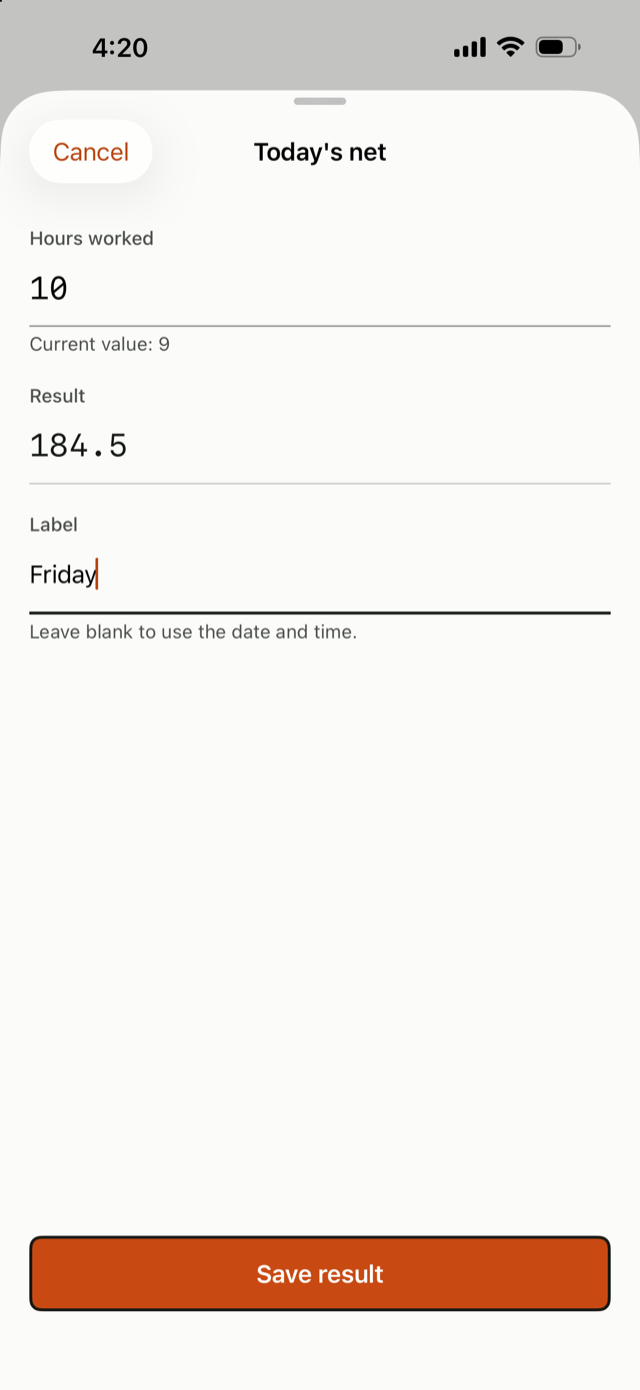
To run a formula that asks, tap Run on its row in Library. Type the number or numbers, check the Result, add a Label if you like (leave it blank to use the date and time) and tap Save result. When a formula is open in the Calculator and it asks for something, the button reads Run formula, which opens the same Run sheet. Otherwise it reads Save result.
What a run does to the variable. Under each field the Run sheet shows the variable's current value as a hint, never as a default. Tap Save result and every variable the formula asked about takes the number you typed, everywhere at once: Library, the other formulas that use it, their Dashboard cards and the Home Screen widgets. History shows "Was 9" under the variable and a row under each formula whose answer changed. A variable that had no value yet (a new ask-each-time variable, or one that came in a file) gets its first number without a "Was" row: nothing changed, so History has nothing to say until the number changes. Until you tap Save result nothing changes, so you can look at an answer first. A Shortcuts run with Save to History off only calculates and changes nothing. A call such as Net with Hours 9 inside a formula uses 9 for that one call and never changes Hours. Editing an ask-each-time variable in Library works like any other variable, and writes History too.
6. Saved results and History
How formulas keep results
A formula keeps a list of values: its saved results. Every time you tap Save result (or a Shortcut saves one), the answer is added to the end of that formula's list, with the date and time it was saved. A variable is still a name for a number; the list belongs to the formula.
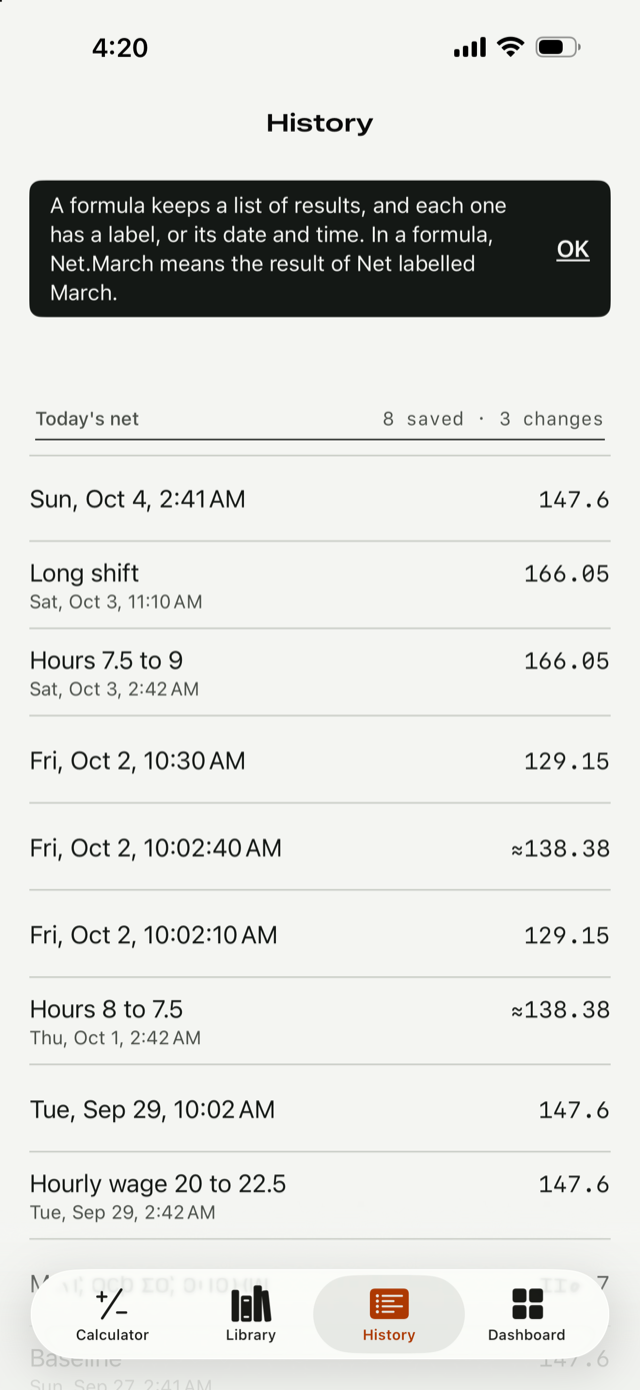
Each result in the list has a label. You can give it a name (March), or leave it blank and it is called by its date and time ("Fri, Oct 2, 3:42 PM"). Labels must be different within one formula, so a label is enough to point at exactly one result.
Everything that works with saved results works over that list: first, last, a result by position, lowest, highest, average, total and number of results, the History group, a Trendline card, and a variable that follows a result. And a formula can name one result: Net.March means the saved result of Net labelled March.
A worked example. Net is a formula, and you have saved three results, labelled February, March and April (150, 160 and 200).
- last ( Net results ) is 200, the newest. first ( Net results ) is 150. Position 2 is 160.
- Net.March is 160, always that one result. Change its label to Spring and the chip reads Net.Spring; the formula that uses it still works. Change its value with Edit value and the formula follows.
- Net.April − Net.March is 40, the same as 200 − 160.
- Try to save a fourth result labelled march and Numkoi asks for a different label, because March is already used in Net. A result with no label is always allowed.
- If you delete the March result, a formula that uses Net.March has no value and says so. Undo or Restore brings it back.
A formula with one saved result needs no choice: tapping it where you pick a result takes that result, and the pick moves to the newest one when you save another. The first time History shows saved results it says this in a short hint, and the ≡ Results sheet starts with the same line: "A formula keeps a list of results. Each has a label, or its date and time."
Save result stores the answer with its date, and the button then reads ✓ Saved to History until the answer or the calculation changes. A new formula also records its first answer so History is never empty after you save one, which is why a formula you have just saved already shows "1 saved result" in Library before you have pressed Save result. A saved result is never changed when a variable changes later: the button goes back to Save result so you can save the new answer.
The History tab lists saved results grouped by formula, newest first, with the number saved. A group shows a total under it when that formula has Add up results in History switched on (open the formula's details to change it; it is off for a new formula). Tap a group name to fold it away. Tap a row to see the full answer, when it was saved and the formula, with Open formula, Copy answer and Copy as text. Swipe a row to Edit label or Delete; tapping a row also offers Add a label, Make a variable and Copy. Changes you make to a variable or formula also appear as rows. When the rounded numbers look the same, History shows more digits ("G 9.81 to 9.8107").
What a saved result is called. With no label of your own, a result is called by when it was saved: the date and time in your time zone, such as "Fri, Oct 2, 3:42 PM". If two results of one formula were saved in the same minute, those show seconds ("3:42:07 PM") so they still read differently. Numkoi stores every time as an exact moment and shows it in the time zone your phone is in now, so if you travel the same result reads as the local time there.
Naming a result. You can call a saved result anything, up to 80 characters, and change it later. Give it a name in the Label box of the Run sheet; or tap ✓ Saved to History · Add label in the Calculator right after Save result; or, in History, swipe a row and tap Edit label, or tap the row and then Add a label or Edit label. A named result shows its name with the date and time under it. Clearing the name goes back to the date and time. A label must be different from the label of every other saved result of the same formula (capital letters and spaces at the ends do not count, so March and march are the same). If it is already used you are told, and asked to pick another, in the Run sheet, in ✓ Saved to History · Add label and in History. Another formula may use the same label. A result with no label is always fine, as many as you like. A Shortcut that runs by itself never fails on this: if the Label you give Run Formula is already used, Numkoi adds 2, 3 and so on (March 2). Restoring a deleted result whose label has been used since adds the number too.
Pick a saved result by its name. Where one saved result is picked, a list shows each one with its name (or date and time) and its value, newest first, with a search box that looks in the name, date, formula and value.
A variable that follows a result. Start from a saved result in the New variable sheets (Calculator and Library) opens the same pick sheet as the Results button, with one more choice, A specific result. Pick the last result, the lowest, one by position or one result by its name, and the variable keeps following it (the switch is on): the variable shows that number and changes when the result does. Save a new result and a variable that follows Last changes with it. Under the value, the Library and the variable's own page say what it follows, for example "Follows Today's net, last saved result". Turn the switch off to copy the number instead; the variable then keeps it even if the result changes or is deleted. In History, Make a variable on a result follows that one result. A variable that follows can't be typed into: tap Stop following (keep this number) on its page to turn it into an ordinary variable with the number it has now. If the result it follows is deleted, the variable has no value and says so; Undo or Restore brings it back. Deleting a result that a variable or a card follows says so in the Undo bar. A result that is a list cannot start a variable, and a date can only be followed.
Edit a saved result's value. A result's detail in History has Edit value for a number or text result (not a list, a date or a change row). A result that holds a number only takes a number (the same message appears and nothing changes); a text result takes anything. It changes the result, adds a row under the formula ("Day pay result 760 to 775") and one under every formula that uses that formula's results or names that result in a formula (see Use one particular result in a formula), and a variable that follows the result changes with it without writing a row.
A Trendline card on the Dashboard draws a formula's saved results as a chart (section 7).
A formula's saved results also appear as a ≡ chip in the Calculator, named "(formula name) results" with a count such as "5 saved". Tap it after sum, average, count, min or max to add them up, for example sum ( Day pay results ).
Pull one result out of a series. The chip row has a ≡ Results button right after + Variable. Tap it, choose the formula whose saved results you want, then choose what to take: the last or first saved result, one by its position (3 is the third saved; Count from the newest makes it the third from the end), the lowest, highest, average or total, how many there are, or A specific result (see below). It shows the value before you tap Insert, and Insert puts the same chips the functions make, for example last ( Day pay results ), so the formula stays readable. The functions also stay in the row for typing: first, last and nth work as before (nth opens the same sheet). A series is also a way to see change: last ( Day pay results ) − first ( Day pay results ) is how far the newest result is from the oldest. A position past the end says how many results there are.
A formula with one saved result. A formula that has exactly one saved result needs no choice. In the ≡ Results sheet and in Start from a saved result (New variable), tapping it picks that result in one tap, with no first, last or position to choose; its row says "1 saved result". The pick is that formula's latest result, so when you save a second result it moves to the newest one, the way a variable changes when you set it: a variable made from it follows the newest result, and a chip inserted from it reads the newest. A formula with no saved results still says so, and with two or more the full choices come back. A Dashboard card for a formula always starts on Current answer, whatever its saved results, so it follows the variables the formula uses (a new formula records its first answer as a saved result, but a card should not be stuck on that one number). For a formula with one saved result the Show list has just two choices, Current answer and Last saved result ("Its saved result. Moves to the newest one when you save another."); choose that one if you want the card to show the saved value instead.
Use one particular result in a formula. In the ≡ Results sheet choose A specific result, tap Pick a result and choose it by its label (or its date and time), then Insert. The chip reads the formula's name, a dot and the result's label, for example Day pay.March, and its value shows on it, so Day pay.March − Day pay.February works like any two numbers. The chip points at that one result, not at its name: if you change the label to Spring, the chip reads Day pay.Spring and the formula still works. Change the result's value with Edit value and the formulas that use it change, with their usual rows in History. If the result is deleted the formula has no value and says "Day pay.March was deleted"; Undo or Restore brings it back. Deleting a result that a formula uses says so in the Undo bar, and the delete warning for a formula lists the formulas that use one of its results. Because a saved result is a number that was saved, never a calculation, using one never makes a loop, even in the formula it belongs to.
Text functions. The row after the list functions has text functions, and a “” Text chip and a , chip. join puts parts together (concatenates): tap join, then a text variable or the Text chip (type a word, a label or a space), a comma, the next part, and ) , for example join ( "Rent is" , Rent ) is Rent is 1,450. upper, lower and title change the case of a text, length counts its characters, trim takes spaces off both ends, and left and right take the first or last few characters (left ( Shop name , 3 )). The comma works only inside a function's brackets, after a finished part. A text variable is an ordinary chip: it is no longer greyed out. Math still needs numbers, so Shop name × 2 says so.
Joining text and numbers. + joins two texts exactly as they are. Where a text meets a number or a date (with + or join), Numkoi writes the number out, the way the variable is shown, and can add a space: "Total" + 5 is "Total 5". Settings > Join text and numbers chooses: Automatic (the default: a space, except where a symbol should stay attached, so $ and 5 make $5 and 5 and % make 5%), Always (a space unless there is one) or Never (nothing added). Text next to text is never changed. Calculations run left to right, so "a" + 5 + 3 is "a 5 3"; use join ( "a" , 5 + 3 ) for "a 8".
Dates and times. A variable can hold a date and time: in New variable choose Date and time under the name, pick it, and say whether it is Date only. It is entered in a time zone (your phone's, with Time zone to choose another) and saved as an exact moment, so it does not shift when your phone changes zone. Date functions: now is the current date and time, today is the start of today, datediff ( start , end , days ) counts the complete days, weeks, hours, minutes, months or years from one date to another (negative if the end is earlier), counting the way the calendar does (the last day of a shorter month counts as the same day, so Jan 31 to Feb 28 is one month), and dateadd ( start , 7 , days ) moves a date. After the second comma a row of unit chips (days, weeks, hours, minutes, months, years) appears; leaving the unit out means days. Also, one date minus another is the days between them, and a date plus or minus a number moves it by that many days. A formula that uses now or today shows the moment it was last worked out; on a Home Screen widget that is when Numkoi last ran.
7. Dashboard
The Dashboard tab keeps the numbers you look at most in one place, as cards. A card follows your variables and saved results, so it changes when they do.
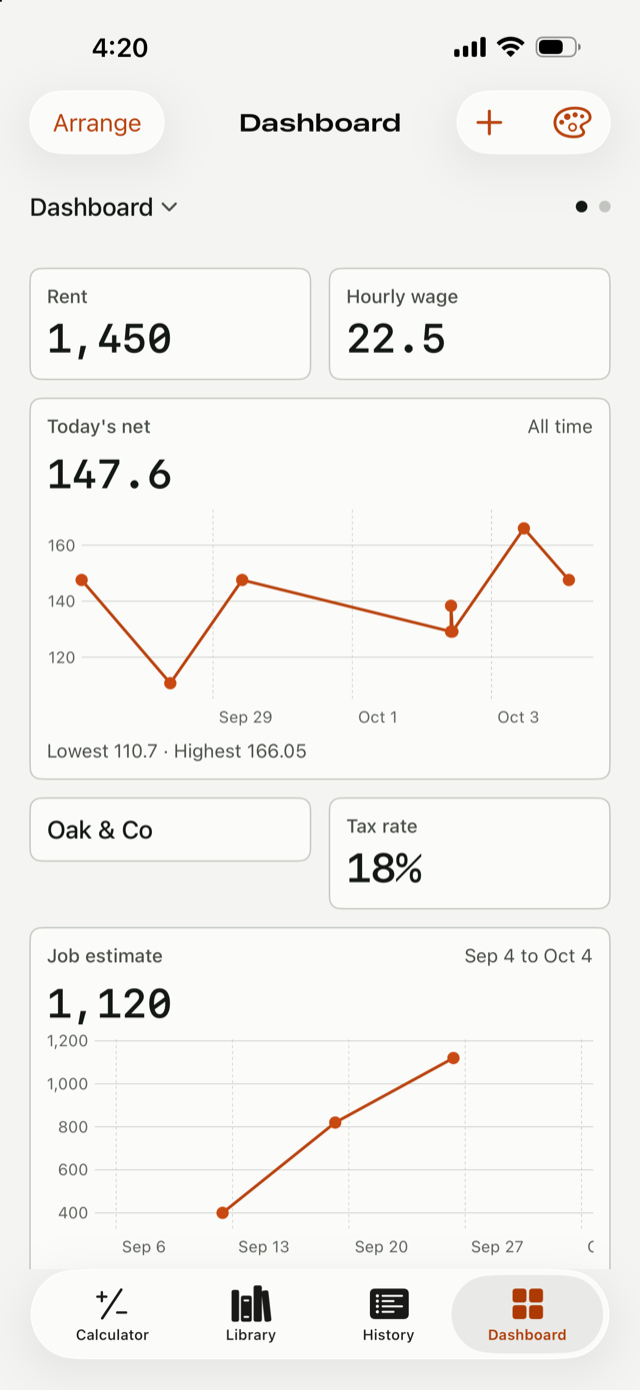
Pages. The Dashboard is split into pages, and each card is on one page. You start with one page, named Dashboard. Under the title, a bar shows the name of the page you are on and a dot for every page. Swipe left or right to change page, or tap the name to pick any page from a list (it says how many cards each page holds). With VoiceOver, the dots read as one control, for example "Page 2 of 3, Work"; swipe up or down on it to change page. Numkoi remembers which page you were on only while it stays open; when you open it again it starts on the first page. The theme you choose for the Dashboard is the same on every page.
To manage pages, tap the page name and choose Pages…. The Pages sheet lists every page with how many cards it holds. Tap a page to rename it: a name can be up to 30 characters, a counter shows how many you have used, and an empty name becomes "Page 1", "Page 2" and so on (names do not have to be different). Drag the handles to change the order of the pages, or, with VoiceOver, use the actions Move up and Move down. Add page makes a new page at the end with a name like "Page 2" and takes you to it. A Dashboard holds up to 8 pages; at 8, Add page is switched off and says so.
Deleting a page. In the Pages sheet, swipe a page (or press and hold it, or use the VoiceOver action Delete page) to delete it. A page with no cards is deleted at once. A page with cards asks first, naming the page and how many cards it holds: Delete page and its cards, Move the cards to the page before it (the page after it when it is the first), or Cancel. The move choice appears only when that page has room for all of them. Either way an Undo bar appears for 10 seconds, and Undo puts back the page, its place in the order and every card on it, with their themes, so a widget that showed one of those cards works again. If you already have 8 pages again, Undo says it could not put the page back yet and keeps the offer on the bar for 10 more seconds, so you can delete another page and tap Undo again; the cards are not lost. If you delete something else while an Undo is showing, both stay on offer: Undo takes back the newest first, then the one before it (the last five). The last page cannot be deleted. Deleting a page you are on takes you to the page before it. A deleted page and its cards are not kept in Recently deleted, which holds variables and formulas only.
To add a card, tap + at the top right and choose a kind. Each kind says what it is for.
- Text: a note you type, the text of one variable, or the answer of one formula. Choose Type text, Use a variable or Use a formula at the top. With a formula it has the same Show list as Header and value (below).
- Header and value: a short header you type, over the value of one variable or one formula. Choose Variable or Formula with the switch under the header, then tap the one you want; Save stays grey until the header is typed, and a quiet line under the fields says "Type a header to save."; variables and formulas are listed apart, so a formula is one tap away. For example, Rent over 1,450, or Latest net over the newest saved result of Today's net. With a formula, a Show list appears: Current answer (the default: the formula worked out now, which follows its variables and uses the current value of any variable it asks for each time, which a run sets), or a value out of its saved results: Last, First, A result by position (3 is the third saved; Count from the newest makes it the third from the end), Lowest, Highest, Average, Total, Number of results, or A specific result, which you pick by its label and which the card keeps following even if you rename it.
- Trendline: a chart of one formula's saved results. Choose the formula and a time range: 1 day, 7 days, 1 month, 3 months, 1 year, All time, or Custom with a start and an end date. The ranges end now, so 7 days always means the last seven days. A result sits on the chart at the moment it was saved, so results saved a minute apart overlap on a long range such as 1 month and look like one vertical line; All time starts at the first result and spreads them out. Drag along the chart to read a point.
Themes. The paintbrush button at the top of the Dashboard opens Themes. A theme is a set of colours for your cards: the card colour, the header, the value, the chart line and the chart points. There are three premade themes: Ledger (the look Numkoi has always had, which follows light and dark, and the default), Midnight (deep navy with ice-blue headers, white values and a yellow line) and Ember (warm cream with rust headers, dark brown values and an orange line). Tap one to use it for the whole dashboard. New theme makes your own: name it, pick the five colours with the colour picker, and a live card shows the result. A note says when a colour is hard to read on the card colour, and a colour that cannot be told apart from it is not allowed. A theme you make looks the same in light and dark. Press and hold a theme (or swipe it) to copy it, and to edit or delete one of yours. You can have 12 of your own. Deleting a theme sends its cards back to the dashboard's theme, and a dashboard that used it goes back to Ledger. A single card can have its own theme: open the card's Edit sheet and choose one under Theme ("Same as the dashboard" follows the dashboard). Widgets on the Home Screen are drawn in their card's theme; Lock Screen widgets and tinted Home Screen widgets are coloured by iOS and keep the system colours.
What a card shows:
- A variable that holds a number shows it the way the Library does, with your Answers shown with setting and a ≈ when digits are hidden. A percent variable shows as a percent. A variable that holds text shows the text.
- In Arrange, each card says what it follows, for example "Header and value · Today's net, last saved result".
- A variable with no value shows "No value yet", and a variable that asks each time shows its current value, or "Asks each time" while it has none.
- If you delete a variable or formula a card uses, the card says "Missing: Rent". Restore it from Recently deleted and the card comes back by itself. If it was deleted for good, the card says "Deleted"; edit it to choose something else.
- A formula on a card shows "Run this formula once to see a value" if a variable it asks for each time has no value yet, and "No saved results yet" for a pick with nothing to pick from. If the one result a card follows is deleted, the card says so, and Undo (or restoring it) brings the card back. Lowest, Highest, Average and Total leave out any result that is not a number and say how many.
- A trendline draws results that are numbers. With nothing saved it says "No saved results yet". With results but none in the range it names the latest one. One result is a single dot. Thousands of results are thinned for drawing, and the highest and lowest points are kept.
To change the Dashboard, touch and hold a card for Edit, Move earlier, Move later, Move to page and Delete. Arrange, at the top left, lists the cards of the page you are on so you can drag them into a new order or swipe to delete. After a delete, an Undo bar appears for 10 seconds (a second delete does not cost you the first Undo: Undo takes back the newest, then the one before it). Move to page lists the other pages (it is not there when you have only one); a page that already holds 48 cards is greyed and marked Full. The card goes to the end of that page, keeps its theme and everything else, and an Undo bar appears for 10 seconds that puts it back in its old place. With VoiceOver, each page is an action on the card, for example "Move to Work". A new card goes on the page you are on. A page holds up to 48 cards; when it is full, the + menu says "This page is full. Move or delete a card, or add it on another page." A page with no cards says "Nothing on this page yet" and has one button, Add a card (a Dashboard with one page and no cards says "Nothing on your dashboard yet").
On iPhone the cards sit two to a row, with text notes and trendlines taking a full row. On iPad there are three or four columns.
8. Widgets
A widget puts one Dashboard card on your Home Screen or Lock Screen. It shows the card as it was the last time Numkoi ran or changed, and Numkoi updates it whenever your numbers change.
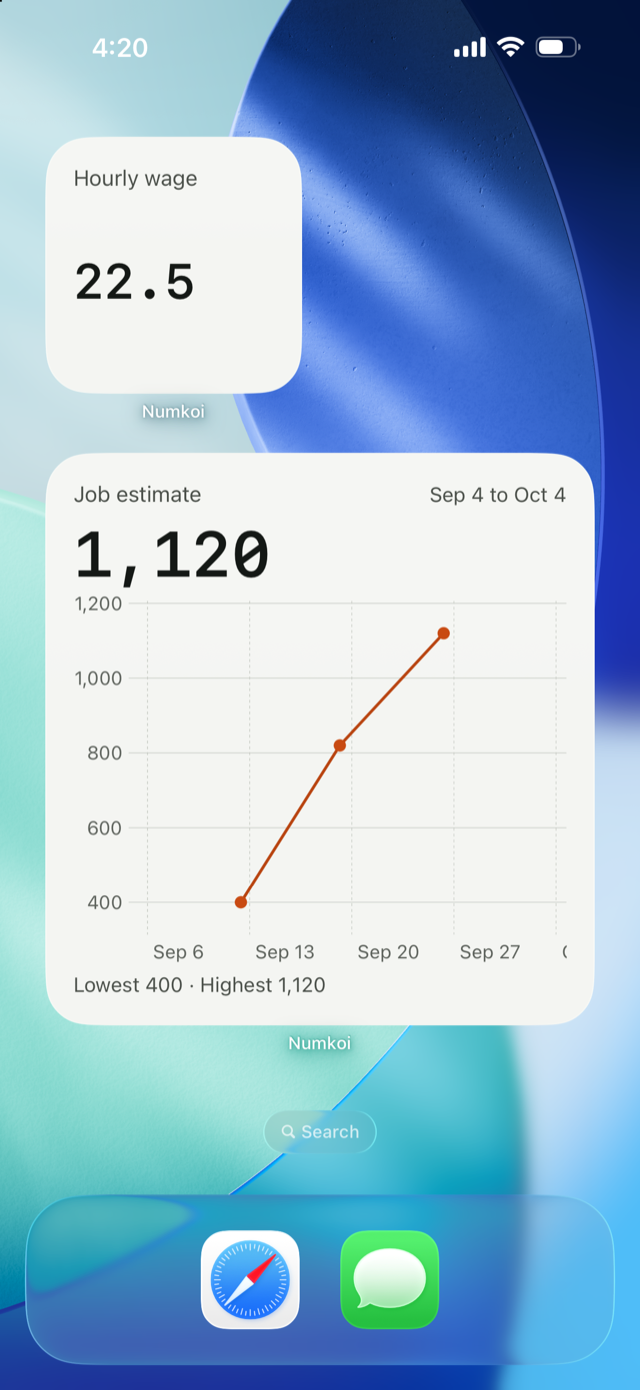
To add one, touch and hold the Home Screen, tap Edit and Add Widget, find Numkoi and pick a size. To choose the card, touch and hold the widget, tap Edit Widget and pick one from your Dashboard. When you have more than one page, the cards are listed under the name of their page; each row shows the card's kind and, if it has its own theme, the theme's name. A widget keeps the card it was set to, so it keeps working when you move that card to another page, and an already-placed widget does not change theme until you pick another card or change the theme. If you delete the page the card is on, the widget says the card was removed, and Undo (within 10 seconds) brings the card back and the widget shows it again. With no choice, the widget shows the card you last chose with Add to Home Screen, else the first card on your first page. Each widget can show a different card.
- Small, Medium and Large work for all three kinds of card. A Header and value card shows its value in large type. A Trendline shows its latest value and a small chart in Small, a chart beside the value in Medium and the full chart with its range and highest and lowest values in Large.
- Lock Screen widgets (a rectangle, a circle and a line of text) show a value, or a trendline's latest value. Values on the Lock Screen are hidden while your phone is locked if your settings hide sensitive information.
- A widget says when its card was removed ("Edit the widget to choose another"), when your Dashboard is empty, or when Numkoi has not been opened yet. If Numkoi has not run for more than a day, a Medium or Large widget shows its last numbers with the date.
- A Home Screen widget is drawn in its card's theme (the card colour behind it, the header, value and chart colours). Lock Screen widgets and tinted Home Screen widgets are coloured by iOS, so they keep the system colours whatever the theme.
- A card whose formula uses now or today shows the moment it was last worked out: a widget cannot work formulas out itself, so it shows what Numkoi last had.
- Tapping a widget opens Numkoi.
- A widget shows what is on the card, formatted as the app shows it, with your Answers shown with setting. If you change that setting, widgets pick it up the next time you leave Numkoi.
- Widgets are read-only and work offline. They read a small file Numkoi keeps on your device; nothing is sent anywhere.
Add to Home Screen. Press and hold a card on the Dashboard and choose Add to Home Screen. iOS does not let an app put a widget on your Home Screen, so this does not add one for you. It opens a short guide with a preview of the card and three steps (touch and hold the Home Screen and tap Edit and Add Widget, find Numkoi and choose a size, tap Add Widget), says which sizes suit the card, and marks that card as the one the next widget you add starts on. If the widget shows another card, touch and hold it, tap Edit Widget and choose the card. (VoiceOver users find the same thing as the action "Add to Home Screen" on a card.)
9. Shortcuts and Siri
Numkoi adds these actions to the Shortcuts app and to Siri.
- Run Formula runs one of your formulas and gives back the answer. Pick the formula; the picker shows what each one asks for. If the formula asks for numbers each time, type them into Value 1, Value 2 and so on, in the order the formula asks, or leave them empty and you are asked for each one by name ("Hours worked?"). The answer comes back as text with plain digits and a dot, such as 73.62 or 1120, so the next step in your Shortcut can use it as a number. Numkoi also says it as a sentence: "Today's net is 73.62".
- Save to History is an option of Run Formula, and it is on by default. It saves the answer as a saved result with the time, exactly like Save result in the app, so a Trendline card on the Dashboard picks it up, and the values you passed become the current values of the variables the formula asked about. Turn it off to calculate without saving. Label shows in History in place of the date and time.
- Open Formula opens Numkoi on a formula. If the formula asks for numbers, its Run sheet opens. It is an action you add in the Shortcuts editor; it has no tile of its own in the Shortcuts library.
- Set Variable sets one of your variables to a new value, exactly like editing it in Numkoi: History gets its "Was ..." row and a row under each formula that changes (not for a variable's first value, which is not a change), and every formula, Dashboard card and widget that uses the variable follows. Pick the variable from the list (it shows each variable's kind and value). Type the new value in Value: a number such as 1500, a percent such as 18%, or text for a variable that holds text. The variable keeps its name, its format and its ask-each-time setting, and only the value changes: 18% sets 0.18, and on a plain variable that shows as 0.18, while a variable that is shown as a percent shows 18%. For a variable that holds a date, the Date field is required: pick the date and time there (text typed into Value does not work for a date variable, and if both are empty you are asked for the date). If you leave the value empty you are asked for it by the variable's name. The action gives back the new value as text with plain digits, such as 1500, and says it as a sentence: "Rent is now 1,500". Setting the value a variable already has changes nothing and says so ("Rent is already 1,500. Nothing changed."). Variables that ask each time are in the list, so a Shortcut can set the number a formula will ask for. A variable that follows a saved result is not listed, because it has no value of its own, and neither is a deleted variable. A value that does not fit the variable (words into a number variable, for example) stops the Shortcut with a message that names the variable. Set Variable cannot create a variable. It is an action you add in the Shortcuts editor; it has no tile of its own.
Set a variable from Shortcuts, step by step. If you have never used Shortcuts, this sets one of your variables to a new number:
- Open the Shortcuts app and tap + to make a new Shortcut.
- Tap Add Action.
- In the search box type Set Variable. Under Numkoi, tap Set Variable.
- Tap Variable and pick the variable you want to change from the list.
- Tap Value and type the new value, for example 1500 or 18%.
- Tap the play button (the triangle) to run it. Numkoi says the new value, for example "Rent is now 1,500", and every formula, Dashboard card and widget that uses the variable follows.
To run it again later, open Shortcuts and tap the Shortcut. Tap its name at the top to rename it, and you can then ask Siri to run it by that name. To make it ask you for the value each time, leave Value empty.
Run Formula the same way: in step 3 search Run Formula instead, tap Formula to pick one, and run it. Its answer is the output of that step, which a next step can use.
With Siri you can say "Run a formula in Numkoi", "Run Today's net in Numkoi" or "Calculate Today's net in Numkoi". iOS shows a ready-made tile in the Shortcuts library for Run Formula and for some of your formulas, but at most 10 tiles for an app, so with more formulas than that some have no tile of their own. Every formula can still be run: add the Run Formula action in the Shortcuts app and pick the formula, or say "Run a formula in Numkoi" and Siri asks which one. Siri asks for any numbers after the phrase. The numbers cannot be part of the phrase.
Good to know:
- A formula can ask for up to 5 values from Shortcuts. If it asks for more, Run Formula says so; run it from the Library instead.
- Values go in the order the formula asks. If you change a formula so it asks in a different order, check the Shortcuts that fill in its values.
- A value must be a number (a percent such as 18% works). Anything else stops the Shortcut with a message that names the value. Set Variable reads what you give it the same way, and keeps text exactly as you typed it for a variable that holds text.
- Numkoi does not need to be open. iOS starts it in the background to run the action. Everything stays on your device, and the answer is saved in the same place as the ones you save by hand.
- The phrases are in English.
10. Percent, markup and other keys
The top row of the keypad has three keys.
- % divides by 100. 15% is 0.15 everywhere, the same as in a spreadsheet and as typing 15% into a variable. So 200 × 15% is 30. To add a percent, multiply: 200 × 1.15 is 230, and so is 200 + 200 × 15%. A line under the answer reminds you when % follows a plus or minus.
- ^ is a power: 2 ^ 10 is 1,024.
- √ is a square root. Tap it before a number (√ 16 is 4) or right after one, and it wraps that number. It covers the number, chip or bracket after it, and a power after that, so use brackets for more: √ (9 + 16) is 5. A negative number gives a plain error.
For a markup, save a variable such as Markup (15%) and use Materials × (1 + Markup). Constants such as π are variables: save Pi as 3.14159265358979.
Not in Numkoi: trig functions, logs, units and currency.
11. Delete, Undo and Recently deleted
Before you delete a variable or formula, a sheet says what uses it: the formulas that use it (listed under Used in), how many Dashboard cards show it (and any widget that shows those cards), and, for a formula, how many variables follow its saved results. It says "Nothing uses it" only when none of those do, and it always ends with how long deleted items are kept. The sheet is only as tall as it needs to be. The formulas will show Missing and stop calculating until you restore it, and the cards show Missing too. Tap Keep to leave it alone.
After a delete, an Undo bar appears for 10 seconds (a second delete does not cost you the first Undo: Undo takes back the newest, then the one before it).
Deleted variables and formulas go to Recently deleted, at the bottom of the Library list and in Settings. They are kept 30 days, then removed for good. Tap Restore on a row to bring it back. Deleted History rows have Undo only; once the bar goes, they are gone.
11a. Sharing, opening files, backups and the Gallery
Opening a file someone sent you
A file made by Numkoi ends in .numkoi. When one reaches Numkoi (from Files, Mail, Messages or AirDrop, or when you pick one), a sheet opens that says what is in it before anything is added. Nothing is written until you tap Add, and Cancel writes nothing.
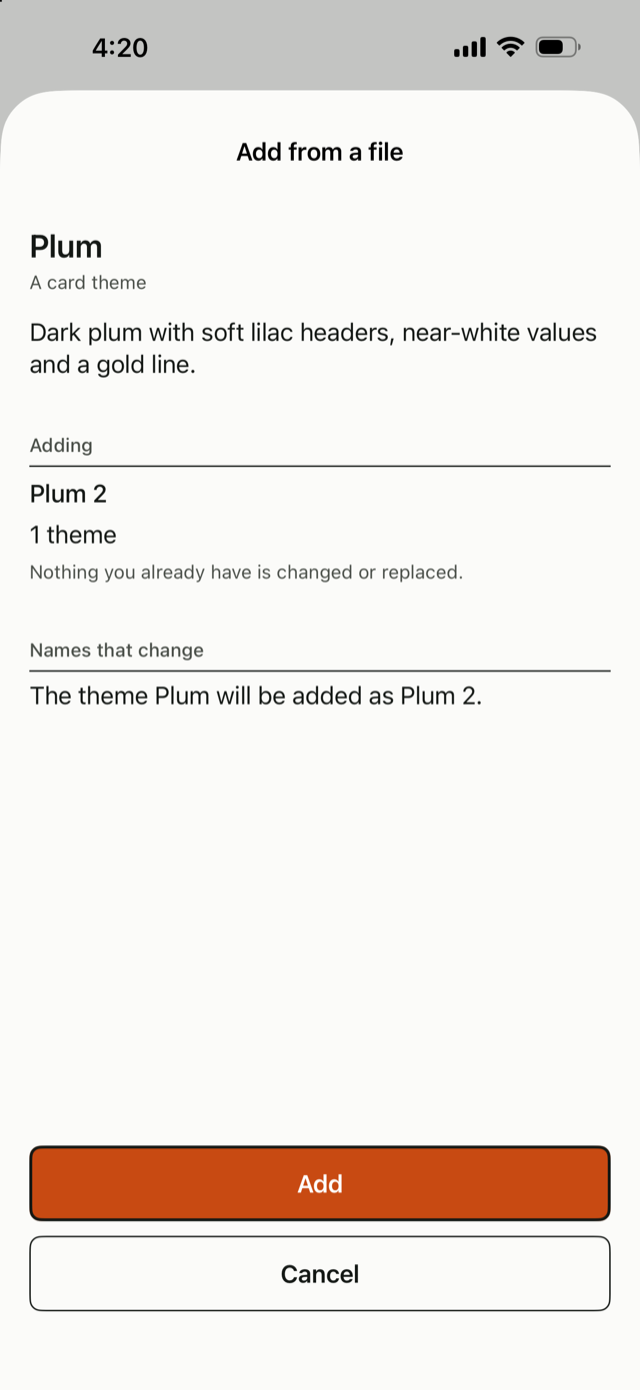
The sheet shows the file's name and what it says about itself, what you are adding ("2 variables and 1 formula"), and anything it brings because it needs it ("It also adds what it needs: Hours and Rate"). Variables arrive with the numbers they hold in the file. Nothing you already have is changed or replaced: a variable, formula, page or theme whose name is already taken is added under a new name ("Rent will be added as Rent 2"), and the sheet tells you which.
Web addresses. A variable in a file can pull its number from a web address. It arrives switched off: Numkoi does not ask that address until you open the variable and tap Refresh, and the sheet names the address's host first. A key is never in a file, so a variable that needs one says which header wants it and you type the key yourself. If an address or a request in the file looks as if someone typed a key into it, the sheet says so, because a key typed there would have been shared with everyone who got the file.
When it can't be added. A file that is not a Numkoi file, is damaged, is too large (8 MB for a backup, 1 MB for anything else) or was made by a newer version of Numkoi says so in one sentence. A file that would go over a limit (more pages than a Dashboard holds, a page over 48 cards, more own themes than you can have) or that holds formulas that use each other in a circle is not added at all, and the sheet says why. A file is added whole or not at all, with one exception: if your device cannot write to storage part way, the sheet says what was added and what was not, and what was added works on its own.
Numkoi opens .numkoi files from Files, Mail, Messages and AirDrop: in another app, touch the file, choose Share or Open in, and pick Numkoi (it shows in the list of apps for that file). If Numkoi was not running it opens first, then shows the sheet. Numkoi keeps no copy of the file you opened; it reads it and removes the copy the system made for it.
When you tap Add the sheet says what was added and offers to show it (Show in Library, or Show on the Dashboard, on the page it landed on). No row is written in History for an import. If you open several files in a row, each gets its own sheet, one after the other.
Share a variable or a formula
In Library, touch and hold a variable or a formula and choose Share (with VoiceOver, use the Share action; the variable and formula details have a Share row too). A small sheet opens first, because a shared variable carries the number it holds. It says what goes in the file (the variable or formula and everything it needs, with counts), says "The numbers currently in these variables go with it", and, for a formula that has saved results, offers Include saved results (off unless you turn it on; a single result that a result chip, a followed variable or a card needs always comes along, because the formula would be broken without it). If a variable pulls from a web address the sheet says "The web address is included. Keys are not." A key you typed into the address or the request itself would be shared, so if one looks like it holds a key the sheet warns you before you send it; put keys in a secret header, which never leaves your device.
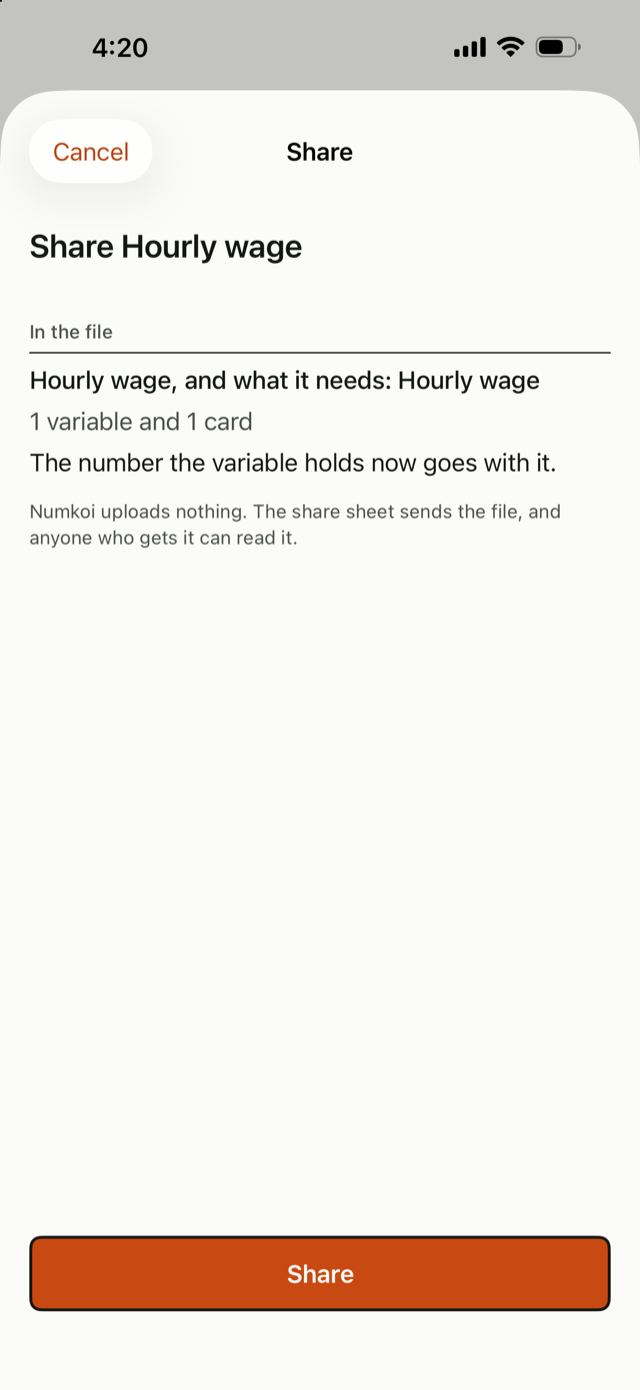
A card, a page or a theme. Touch and hold a Dashboard card and choose Share (VoiceOver: the action Share card); in the Pages sheet touch and hold a page and choose Share page; in Themes touch and hold one of your own themes and choose Share theme. They use the same sheet. A card brings the variable or formula it shows, what that uses, and its own theme if it has one; a page brings all its cards, their variables and formulas and their themes; a theme is a name and five colours. A trendline brings the saved results it draws (without them its chart would be empty), and Include saved results adds the rest. A premade theme (Ledger, Midnight, Ember) is not shared, because every copy of Numkoi already has it. Whoever opens a card file gets the card on the page they are on; a page file becomes a new page.
Tap Share and your phone's own share sheet opens: choose Messages or Mail (they suggest the people you wrote to recently), AirDrop, Files, or any app that takes a file. The file is named after what you share, for example Day pay.numkoi. Numkoi sends nothing itself and asks for no access to your contacts; anyone who gets the file can read it. A formula that uses something you have deleted for good can't be shared until you fix it. Opening it on the other phone is described above.
Back up and restore
Settings > Data > Back up all data makes one file with everything you have and opens your phone's share sheet, so you choose where it goes: Files (iCloud Drive is a good place to keep it), AirDrop or Mail. The file is called "Numkoi backup" with the date in your time zone, for example Numkoi backup 2026-10-03.numkoi. The sheet lists what is in it (your variables and formulas with the numbers they hold, saved results and History, Dashboard pages and cards, your own themes) and what is not: deleted items (Recently deleted is not backed up), settings such as decimals and the Dashboard theme, keys for web addresses (you enter them again) and where your widgets are on the Home Screen. Numkoi uploads nothing, and anyone who gets the file can read it.
Settings > Data > Restore from a file picks a file and shows the same sheet as any file you open, so you see what will be added before anything is. Restore never wipes and never replaces: it adds. After a reinstall or on a new phone, everything in the backup comes back with the ids it had, so widgets and Shortcuts that point at your cards and variables work again, and the empty first page the new install made for itself becomes your first page. On a phone that already has the same things, a restore adds copies with the names "Rent 2" and so on, and the sheet lists them. A restore that would go over a limit of the free version is not added at all: the sheet says what it needs room for, that nothing was restored and nothing on the phone changed, and that Numkoi Pro lifts the limit. Nothing is partly restored and your backup file is left as it is, so you can restore it after unlocking Numkoi Pro. This is the same for a backup of your own made while you had Numkoi Pro.
The Gallery
The Gallery is a set of ready-made formulas, Dashboard pages and themes you can add and start from. It is free. Open it from Settings > Browse the Gallery, or from the quiet link "Need an idea? Browse the Gallery": on Library when it has no variables or formulas and at the foot of its list, on a Dashboard page with no cards and in the Add a card menu, on History when nothing is saved, and under the hint on the Calculator before you have made a variable. It is never on a sheet where you are typing. It is a sheet, not a tab. The list is in sections (Everyday, Work, Home, Health, Dashboards, Themes) with a search field; each row shows the title, a line about it and what it holds, for example "2 variables and 1 formula". Tap one to see what is inside: the names of the variables and formulas, which names would change on your phone ("Temperature will be added as Temperature 2"), and, for a variable that pulls from a web address, which address (it arrives switched off until you tap Refresh). Add to my Numkoi opens the same sheet as any file you open, so you see what will be added and nothing is added until you tap Add there.
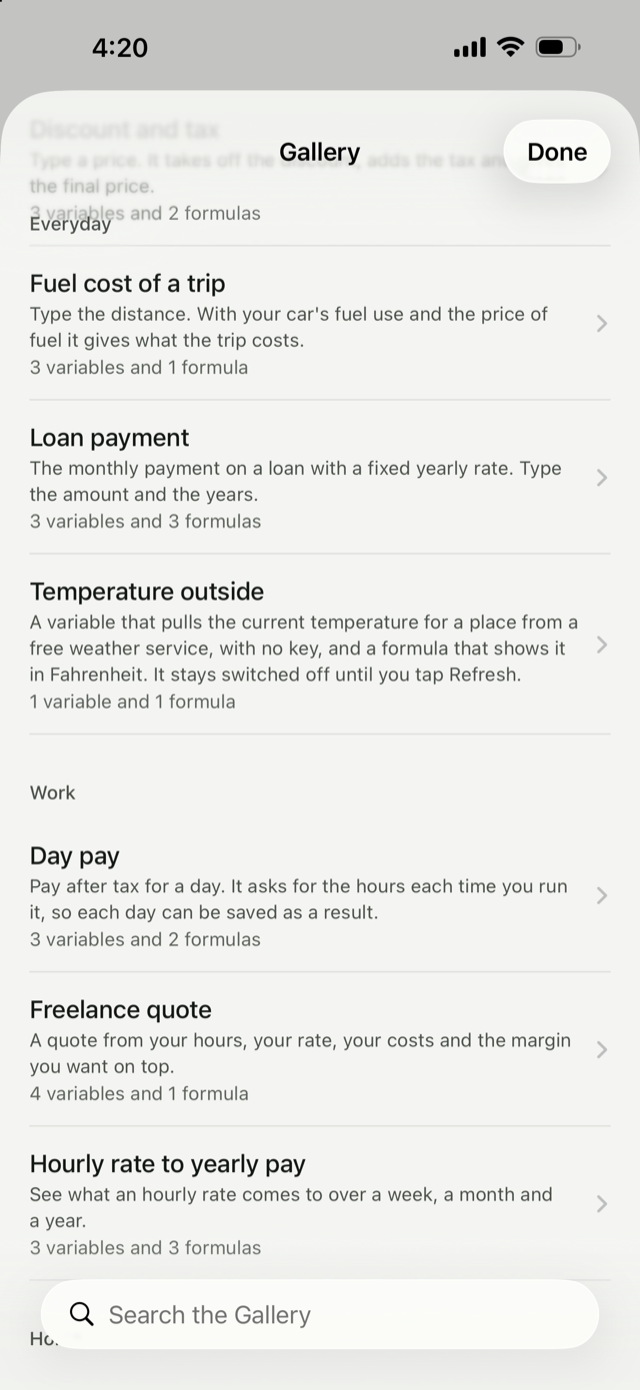
When you open the Gallery, Numkoi asks the Gallery's host for its list (a read-only request that carries nothing about you or your phone; see Privacy). If it can't be reached, or no host is set up, the examples that came with the app show instead, with one line saying so and a Try again button when there is a host to try. One creation that can't be opened (for example a file that does not match its list) is skipped without losing the rest.
12. iPhone and iPad
iPhone and iPad run the same app with layouts for each screen size.
On iPad held sideways, a sidebar lists Calculator, Formulas, Variables, History, Dashboard and Recently deleted, with Settings at the bottom. Formulas and Variables open a list beside the Calculator, with its own New button and search. Your variables and formulas sit beside the keypad instead of in a row.
On iPad held upright, the sidebar steps aside after you pick something. Use the button at the top left to bring it back, and Library at the top right to see your variables and formulas.
With a keyboard attached (on iPad, or an iPhone with a hardware keyboard), the keys 0–9, + − × ÷ ^ % ( ) and . work, Delete removes the last item and Escape clears. Command-Return gives the answer and saves it, Command-R opens the Run sheet for a formula that asks, and Command-S saves. While a chip's popover is open, typing goes to its field and not to the calculation.
Text size follows your system setting, up to the third accessibility size. Light and dark appearance follow your system setting.
13. Settings and Numkoi Pro
On iPhone, open Settings with the word Settings at the top left of Library. On iPad, it is at the bottom of the sidebar. It is in six parts, in this order:
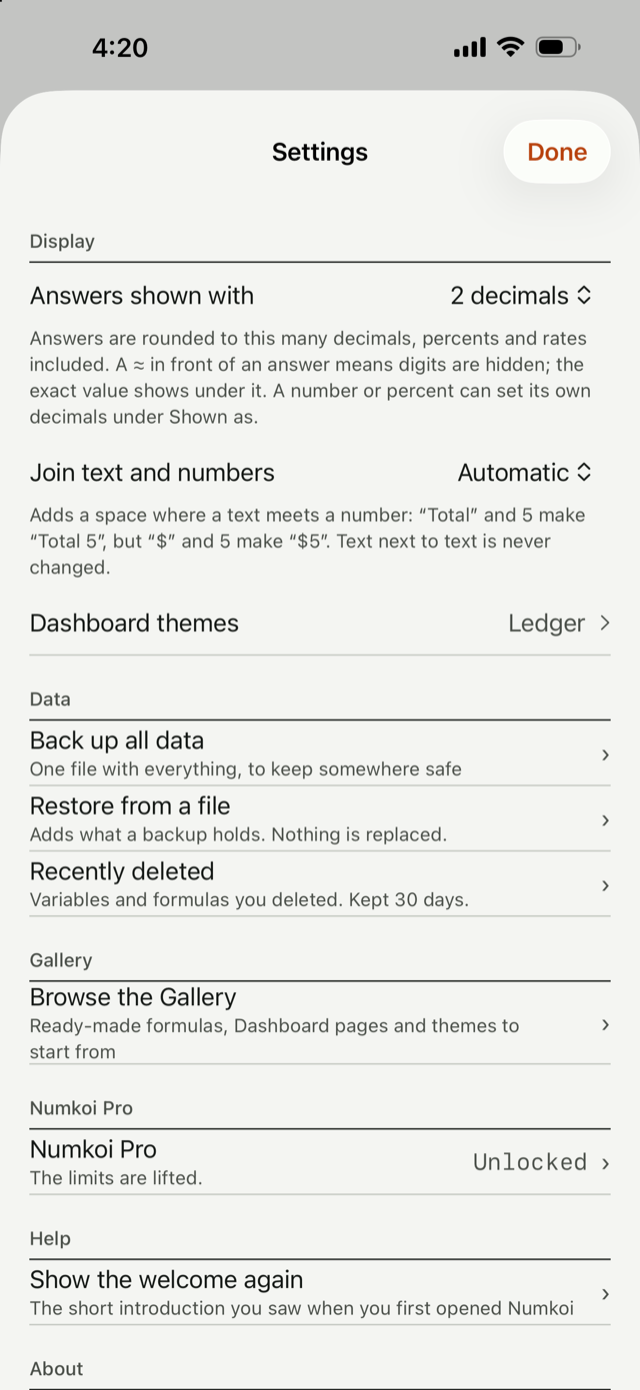
- Display. Answers shown with sets the decimals (0 to 8; the standard is 2). It applies to numbers, percents and rates alike, except a number or percent that sets its own decimals under Shown as. Join text and numbers (Automatic, Always or Never) says whether a space is added where a text meets a number or a date; text next to text is never changed. Dashboard themes opens the Themes screen (the same one as the paintbrush on the Dashboard).
- Data. Back up all data and Restore from a file (section 11a), and Recently deleted, the list of variables and formulas you deleted, kept 30 days.
- Gallery. Browse the Gallery opens the ready-made examples (section 11a). Suggest a creation explains how to share one of yours as a file and email it to the Gallery; nothing is uploaded from the app.
- Numkoi Pro. Shows Free or Unlocked and opens the Pro sheet (see below).
- Help. Show the welcome again brings back the short introduction from your first minute.
- About. Privacy opens the privacy text inside the app, Privacy policy and Support open the hosted pages on the web, and Version.
Numkoi keeps your data on the device and does not sync, so there is no sync setting.
Numkoi Pro
Numkoi is free to use. Numkoi Pro is one purchase, not a subscription, that lifts three limits of the free version:
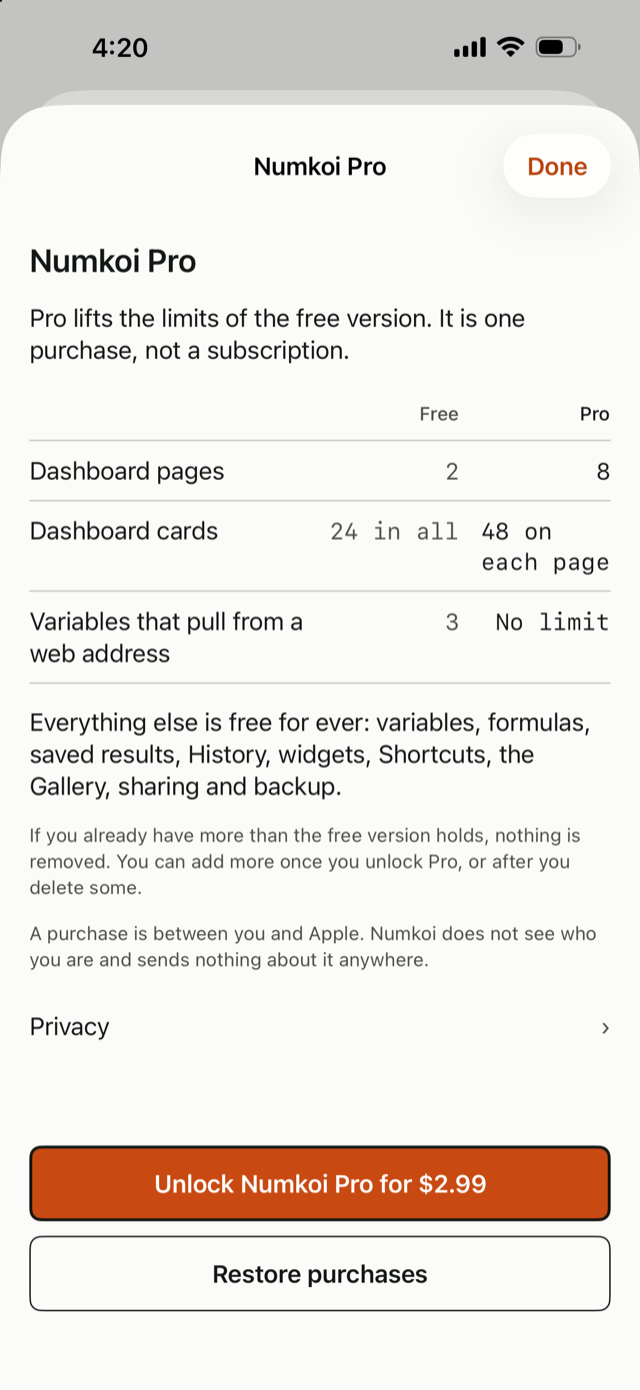
| Free | Pro | |
|---|---|---|
| Dashboard pages | 2 | 8 |
| Dashboard cards | 24 in all | 48 on each page |
| Variables that pull from a web address | 3 | No limit |
Everything else is free for ever: variables, formulas, saved results, History, widgets, Shortcuts, the Gallery, sharing and backup. If you already have more than the free version holds, nothing is removed. Everything you have keeps working; you just can't add more of that thing until you unlock Pro or delete some. The same goes if a purchase is refunded.
Where you meet a limit. In the Pages sheet, Add page is off at the limit and says "The free version holds 2 pages. Numkoi Pro holds 8." with a See Numkoi Pro link. In the Dashboard's add menu, Add a card shows the same kind of sentence at the 24th card; a page that holds 48 cards says it is full, which Pro does not change. In a new variable that is not one already, the A web address choice under Value comes from is left out once you have 3, so only Typed and A saved result are shown; the form says "The free version holds 3 variables that pull from a web address. Numkoi Pro has no limit." with a See Numkoi Pro link, and the variable stays typed. A file you open (and a backup you restore, or something from the Gallery) counts against the same limits: the sheet says what would be added and what does not fit, Add is off, and nothing is partly added. Adding variables, formulas and themes from a file is never limited. Duplicate counts too: duplicating a variable that pulls from a web address makes one more that pulls, so at the free limit it is refused with the same sentence and a See Numkoi Pro button. The copy starts with no record of the last time the original was pulled (it shows "Not pulled yet"), keeps the address and the names of the headers that need a key but never the keys themselves, so you type them again. Duplicating a typed variable or a formula is never limited. Undo (and Restore from Recently deleted) give you back what you had and are never refused, even if you added something else in between. There is no Duplicate for cards or pages, and moving a card to another page is not adding one. If you are already over a limit, for example after a refund, the message says so ("You have 25 cards. The free version holds 24; nothing was removed."), everything keeps working, and only adding more is off; deleting brings you back under the limit.
Open Settings and tap Numkoi Pro. The sheet shows the table above, the price the App Store gives for your country on the Unlock button, and Restore purchases, which brings back a purchase you made earlier with the same Apple account (after a reinstall, or on another device). If the App Store can't be reached the button is replaced by "Couldn't reach the App Store" and Try again; if the App Store answers but does not have Numkoi Pro yet it says "Numkoi Pro isn't available right now. Try again later." instead. Either way Restore purchases still works, and Numkoi never shows a price of its own. A purchase is between you and Apple: Numkoi does not see who you are and sends nothing about it anywhere. Where a message says you reached a limit, its Numkoi Pro link opens the same sheet.
14. Privacy and your data
This is a summary. The full policy is on the privacy policy page.
Numkoi collects nothing. There is no account, advertising, analytics or tracking, and nothing is ever sent to the developer. Your variables, formulas, saved results and the Dashboard pages and cards you arrange are stored only on your device. If you use widgets, a small copy of what your Dashboard cards show, with the names of your pages, is kept in a shared folder on your device for the widgets to read; it holds no web address and no key. If you delete the app, your data is deleted with it. Your own device backup may include it.
The app makes no network request by itself. There are two exceptions, both started by you. The first is a variable you set up to pull its value from a web address. For that variable, and only that variable, Numkoi sends a request from your device to the address you typed in (https only), with the method, headers and body you entered, when Numkoi opens (unless you turned that off for the variable), when you tap Refresh and when you tap Try it. The server at that address receives the request and can see it, like any web server, including your device's internet address; what it does with it is up to its owner. Nothing goes to us or to anyone else.
The second is the Gallery. Only when you open it, Numkoi asks the Gallery's host for a public list of examples, and for a file only when you choose one. The requests are read-only and carry nothing about you or your phone; the host sees your internet address like any web server. If it can't be reached, the examples that came with the app show instead.
Numkoi Pro, if you buy it, is handled by the App Store. Numkoi only asks it whether your Apple account owns Pro, and nothing about the purchase is sent to the developer.
Keys: a key or token you mark as Secret in a header is kept in the Keychain on this device only. It is not saved with the variable, not in History, not in a widget and not synced or moved to another device by a backup. It is read only to make the request. A key typed into the web address or the body is saved as plain text on your device, so keep keys in a secret header. iOS manages the Keychain and may keep a key after you delete the app; remove the header first if you want it gone.